Why X May Add a “Made with AI” Label to an Image
Why X may add a “Made with AI” label, which file-level provenance signals can contribute, and why editing metadata does not guarantee a label disappears.
You drop an image into the X composer, and a “Made with AI” label may appear before you post. In observed cases, the “Generated with AI” option is ticked and unavailable to change. File-level provenance such as Content Credentials can contribute to that behavior, but X does not publish every signal or rule used by its labeling systems.
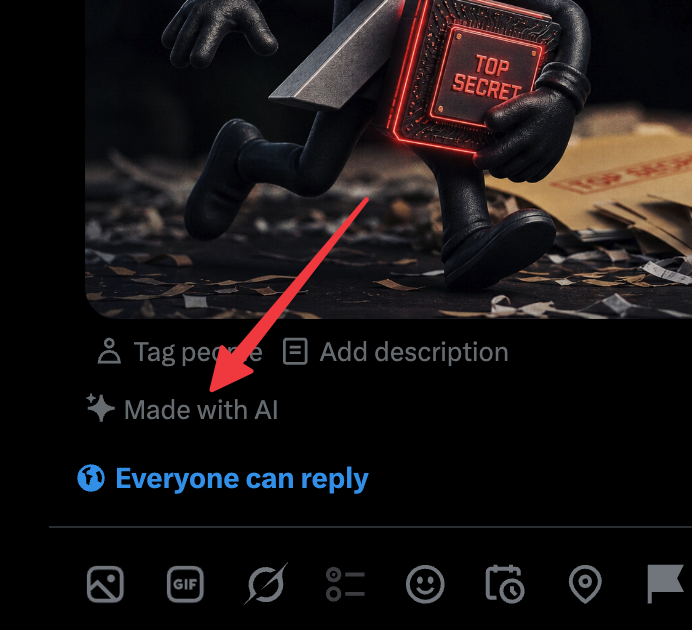
Why X labels your post automatically
Platforms can inspect uploads for industry provenance signals. One is C2PA Content Credentials: cryptographically signed metadata that can record whether a file was made or edited with AI. A manifest can give a platform a machine-readable provenance claim, but it is not safe to assume that metadata is X’s only input or that removing it controls the platform’s final label.
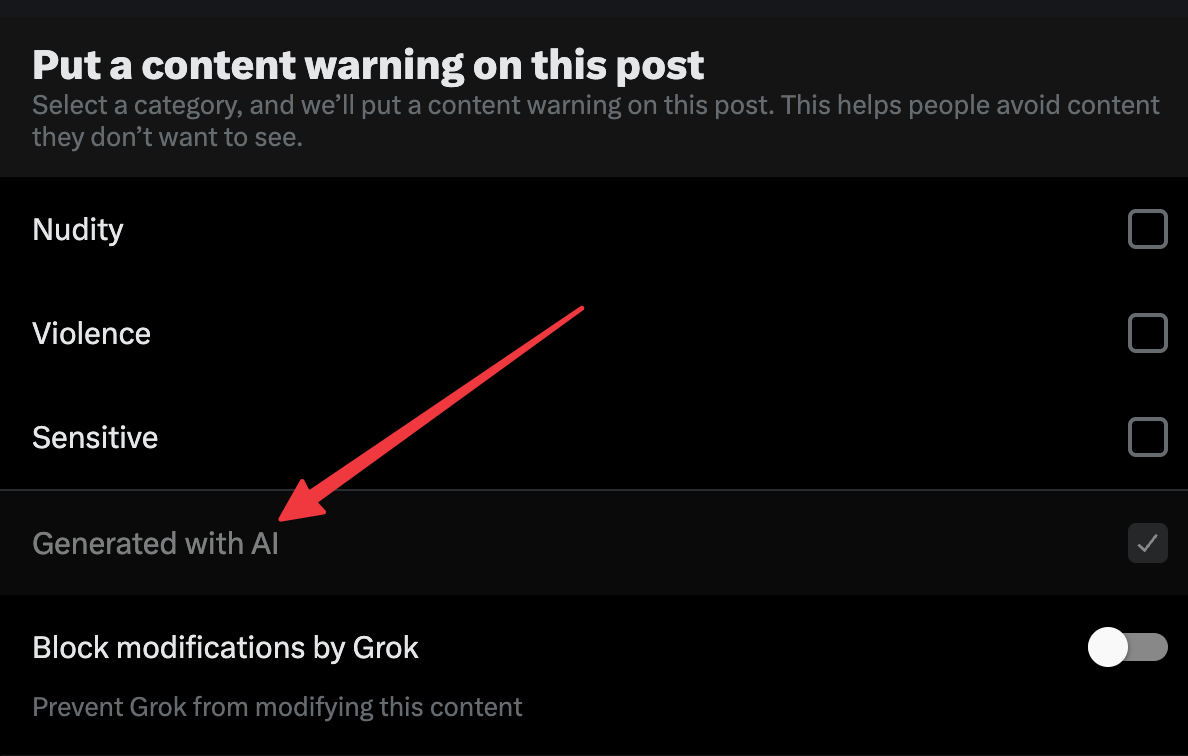
The disabled control shows that the decision can be made automatically. Attached provenance is one plausible, machine-readable input; pixel analysis, account history, and server-side information may also be used. A local file edit cannot erase those other signals. Our breakdown of how X’s “Made with AI” label works separates what X has documented from what testing shows.
What X actually reads in your file
An AI image can carry more than one provenance signal, and they live in different places. Knowing which is which tells you what has to be handled before upload.
| Signal | Where it lives | How to handle it |
|---|---|---|
| C2PA Content Credentials | A signed manifest in the file container (JUMBF / APP11, caBX, or a RIFF chunk) | Dropped by re-encoding, ExifTool, or a metadata strip |
| “Made with AI” EXIF / XMP tags | Standard metadata fields in the header | Removed alongside other metadata |
| Embedded pixel watermark (SynthID) | The image pixels themselves, invisible to you | Needs regeneration to disrupt; a metadata strip does nothing to it |
Metadata is the easiest layer to inspect, but a file may also carry an embedded SynthID pixel watermark. That layer survives a metadata strip. This is why the actual file should be checked instead of assuming every ChatGPT or DALL·E image has identical provenance layers.
How to inspect the file-level signals
For an image you own, you can inspect and edit file-level provenance before publishing. This explains the file itself; it does not promise how X will classify the upload.
- Strip the metadata. Remove C2PA Content Credentials and any “Made with AI” EXIF or XMP tags. Re-encoding, ExifTool, or our C2PA removal flow all do this.
- Disrupt the embedded watermark if present. For Gemini, ChatGPT, or DALL·E images, the pixel-level SynthID signal needs regeneration, which the AI watermark remover handles. Results vary and no tool guarantees every detector.
- Verify. Check the file at contentcredentials.org/verify; a clean file reports “No Content Credentials found.” Google’s SynthID Detector covers the pixel layer.
- Follow the platform rules. A file with no detectable Content Credentials can still receive a label from other checks, so use X’s disclosure controls and current policies.
Why cropping or a screenshot is not enough
A screenshot or a quick re-save will usually kill C2PA metadata, which removes the most likely automatic trigger for a metadata-only image, though X has not confirmed what its detection reads. But a screenshot reproduces the same pixels, so it leaves an embedded SynthID watermark fully intact, and cropping does not reliably remove it either. If you want the detail on that, see whether cropping removes SynthID. For the broader picture of how each platform reads these signals, our guide to AI labels on social platforms goes deeper.
Delete SynthID supports JPEG, PNG, WebP, AVIF, HEIC, and HEIF up to 20MB, and your first 3 images are free. Process a copy, confirm it comes back clean, then post it. If you need volume, the one-time credit pricing has no subscription attached.
Primary sources
Technical and policy claims in this guide were reviewed against these references.
Last reviewed July 16, 2026. This guide is general product and publishing information, not legal advice.